
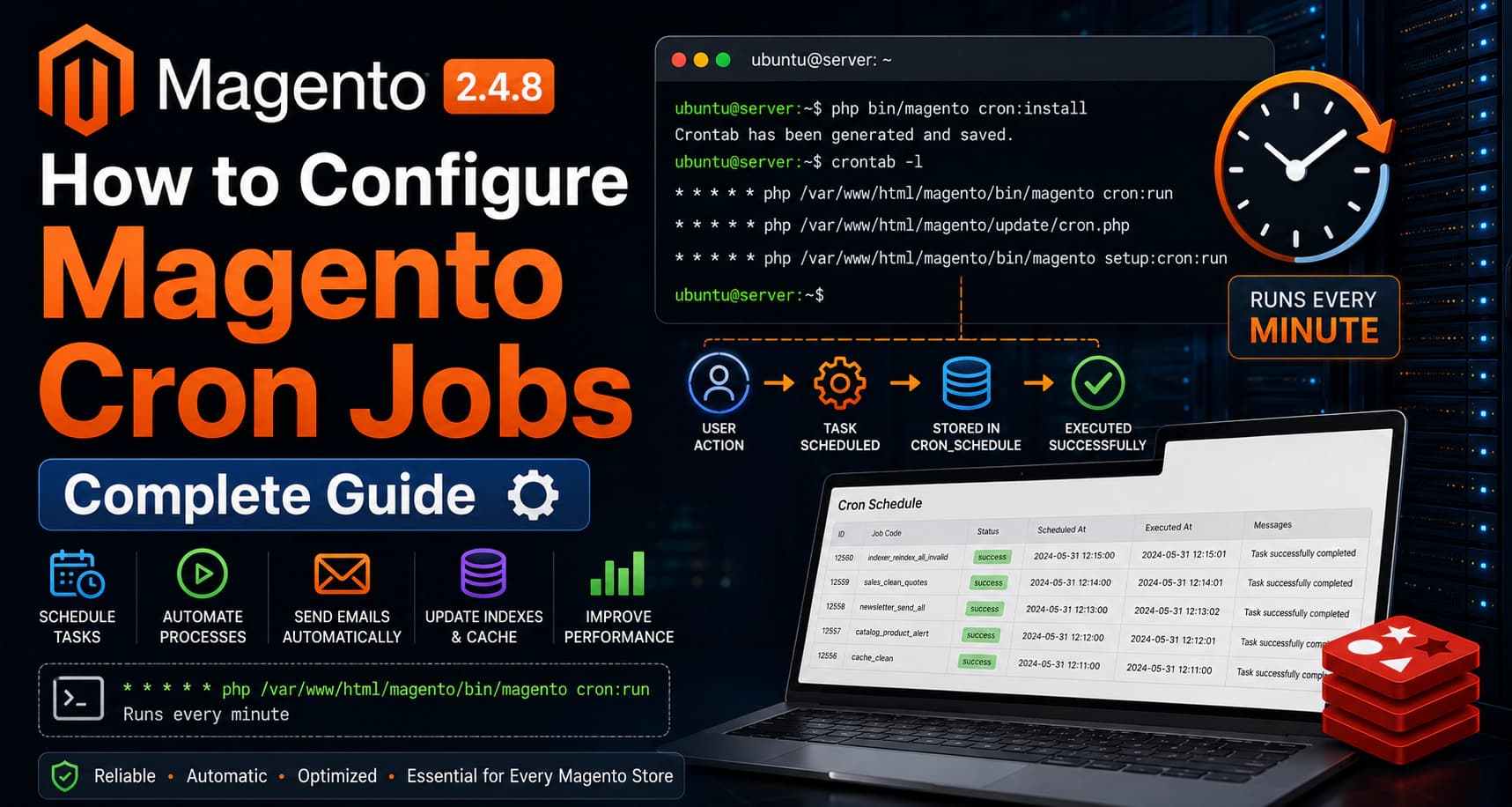
Magento Cron Jobs: Complete Guide
Cron jobs are one of the most important components of every Magento installation. They execute scheduled background tasks that keep your store running smoothly without requiring manual intervention.
Many Magento stores experience issues such as emails not being sent, indexes not updating, catalog rules not applying, or newsletters failing to send simply because cron jobs are not configured correctly.
In this guide, you'll learn how Magento cron works, how to configure it, verify it's running, troubleshoot common problems, and optimize it for production.
What Are Cron Jobs?
Cron is the Linux task scheduler.
It executes commands automatically at predefined intervals.
Instead of manually running repetitive commands, cron executes them in the background.
Magento uses cron extensively for automated maintenance.
Why Magento Requires Cron Jobs
Magento schedules hundreds of background tasks.
Without cron jobs, many important features stop working.
Magento uses cron for:
- Product indexing
- Sending transactional emails
- Newsletter processing
- Sitemap generation
- Catalog price rules
- Shopping cart rules
- Cache cleanup
- Log cleanup
- Currency updates
- RSS feeds
- Message queue consumers
Without cron jobs, your store may appear functional but several background operations will silently fail.
How Magento Cron Works
Magento doesn't execute every task immediately.
Instead, it follows this process:
textCustomer Action │ ▼ Magento creates a scheduled task │ ▼ Task stored in cron_schedule table │ ▼ Linux Cron executes every minute │ ▼ Magento processes pending tasks │ ▼ Task marked Success or Error
This scheduling mechanism prevents long-running operations from slowing down customer requests.
Prerequisites
Before configuring cron jobs, ensure you have:
- Ubuntu Server
- Magento installed
- PHP configured
- CLI access
- Correct file permissions
Step 1 — Navigate to the Magento Root Directory
Move to your Magento installation.
Example:
bashcd /var/www/html/magento
Replace the path with your Magento installation directory.
Step 2 — Check Existing Cron Jobs
View the current cron configuration.
bashcrontab -l
If Magento cron hasn't been configured yet, you may see:
textno crontab for www-data
This simply means no scheduled jobs exist for that user.
Step 3 — Install Magento Cron
Magento provides a command that automatically creates the required cron entries.
Run:
bashphp bin/magento cron:install
Expected output:
textCrontab has been generated and saved.
Magento will now add the recommended cron configuration for the current user.
Step 4 — Verify the Installed Cron Jobs
Display the configured cron entries.
bashcrontab -l
You should see entries similar to:
text* * * * * php /path/to/bin/magento cron:run * * * * * php /path/to/update/cron.php * * * * * php /path/to/bin/magento setup:cron:run
These jobs execute every minute and ensure Magento processes scheduled tasks continuously.
Step 5 — Understand Each Cron Command
Magento installs multiple cron commands because each serves a different purpose.
cron:run
Processes scheduled Magento tasks.
setup:cron:run
Handles setup-related background operations.
update/cron.php
Used by older Magento update mechanisms and may not be present in newer installations depending on your Magento version.
Understanding each entry helps when troubleshooting or reviewing server configurations.
What We've Completed
At this point you've:
- Learned how Magento cron works
- Verified the existing cron configuration
- Installed Magento cron jobs
- Confirmed the scheduled entries
Next, we'll verify that cron jobs are executing correctly, inspect logs, understand the cron_schedule table, and troubleshoot common cron issues.
Step 6 — Run Magento Cron Manually
Although cron jobs execute automatically every minute, it's useful to run them manually during testing.
Navigate to your Magento root directory.
bashcd /var/www/html/magento
Execute:
bashphp bin/magento cron:run
Magento may not display any output if no scheduled tasks are waiting.
If pending jobs exist, Magento will execute them immediately.
💡 Tip
Running
cron:runtwice is normal during testing. Some jobs schedule additional tasks that are executed during the next run.
Step 7 — Verify Scheduled Tasks
Magento stores all scheduled jobs inside the database.
Login to MySQL.
bashmysql -u root -p
Select your Magento database.
sqlUSE magento;
View the latest scheduled jobs.
sqlSELECT schedule_id, job_code, status, created_at, scheduled_at, executed_at, finished_at FROM cron_schedule ORDER BY schedule_id DESC LIMIT 20;
Example output:
| schedule_id | job_code | status |
|---|---|---|
| 5821 | indexer_reindex_all_invalid | success |
| 5820 | sales_clean_quotes | success |
| 5819 | newsletter_send_all | success |
Understanding Cron Status
Magento tracks every cron task using a status.
| Status | Meaning |
|---|---|
| pending | Waiting to execute |
| running | Currently executing |
| success | Completed successfully |
| missed | Execution window missed |
| error | Execution failed |
A healthy Magento installation should mostly show success.
Occasional pending jobs are expected.
Repeated error or missed jobs require investigation.
Step 8 — Check Cron History
To find failed jobs:
sqlSELECT job_code, status, messages FROM cron_schedule WHERE status='error' ORDER BY schedule_id DESC;
This helps identify:
- Extension issues
- PHP errors
- Missing permissions
- Memory problems
Step 9 — Monitor Magento Cron Logs
Magento logs cron activity.
Common log files include:
textvar/log/system.log var/log/exception.log
View logs in real time.
bashtail -f var/log/system.log
Or:
bashtail -f var/log/exception.log
If cron jobs fail, the related errors often appear in these files.
Step 10 — Check Linux Cron Service
Verify the Linux cron service is running.
bashsudo systemctl status cron
Example output:
textActive: active (running)
If it isn't running:
bashsudo systemctl start cron
Enable automatic startup.
bashsudo systemctl enable cron
Step 11 — Verify Cron is Executing Every Minute
Display the installed cron configuration.
bashcrontab -l
Typical Magento output:
text* * * * * php /var/www/html/magento/bin/magento cron:run
The five asterisks mean:
textMinute Hour Day Month Weekday * * * * *
Which translates to:
Run every minute.
Magento recommends running cron every minute for reliable task processing.
Step 12 — Understand Magento Cron Groups
Magento organizes cron jobs into groups.
Some common groups include:
| Cron Group | Purpose |
|---|---|
| default | Standard Magento scheduled tasks |
| index | Product and catalog indexing |
| consumers | Message queue consumers |
You can execute a specific group.
Example:
bashphp bin/magento cron:run --group=index
Or:
bashphp bin/magento cron:run --group=default
Running groups individually is useful for troubleshooting specific background processes.
Step 13 — View Current Indexer Status
Many cron jobs are responsible for updating Magento indexes.
Check their status.
bashphp bin/magento indexer:status
Example:
textCatalog Product Price: Ready Customer Grid: Ready Category Products: Ready
If an index remains in an invalid state, cron may not be running correctly or another issue may be preventing successful processing.
Step 14 — Test Email Processing
One of the easiest ways to verify cron is working is to trigger an action that queues an email, such as:
- Creating a customer account
- Resetting a password
- Placing a test order
If emails are processed successfully without manual intervention, it's a good indication that cron is functioning correctly.
What We've Completed
At this point you've learned how to:
- Run cron manually
- Inspect the
cron_scheduletable - Understand cron statuses
- Review Magento logs
- Verify the Linux cron service
- Check installed cron entries
- Understand cron groups
- Verify indexer status
- Confirm background processing
Your Magento server is now correctly configured to execute scheduled tasks.
Production Best Practices
Cron jobs are responsible for many critical Magento background operations. Following best practices ensures your store remains stable and performs reliably.
Use the Correct User
Always configure cron jobs using the same user that owns your Magento files.
For example:
bashwww-data
or
bashnginx
depending on your server configuration.
Running cron jobs as the wrong user may result in permission issues or failed background tasks.
Keep Cron Running Every Minute
Magento recommends executing cron every minute.
Avoid changing the schedule to every 5 or 10 minutes.
Running every minute ensures:
- Faster email delivery
- Timely index updates
- Quicker cache cleanup
- Better customer experience
Monitor Failed Jobs
Review failed cron tasks regularly.
sqlSELECT job_code, status, messages FROM cron_schedule WHERE status='error';
Resolving recurring failures early helps prevent larger operational issues.
Clean Old Cron History
The cron_schedule table grows over time.
Magento automatically removes old records, but you should periodically verify that cleanup is occurring as expected.
Large cron tables can slow database queries.
Monitor Server Resources
Cron jobs consume CPU, RAM, and disk I/O.
Monitor your server using:
bashtop
or
bashhtop
If cron execution causes high resource usage, review your scheduled jobs and server capacity.
Keep Magento Updated
Each Magento release may include improvements to scheduled tasks.
Always test updates in a staging environment before deploying them to production.
Common Cron Problems
Even correctly configured cron jobs can encounter issues.
Below are the most common problems and their solutions.
Cron Jobs Never Execute
Check whether the Linux cron service is running.
bashsudo systemctl status cron
If it's stopped:
bashsudo systemctl start cron
Enable automatic startup.
bashsudo systemctl enable cron
Cron Schedule Contains Only Pending Jobs
If all jobs remain in the pending state:
- Verify Linux cron is running.
- Confirm the Magento cron entry exists.
- Ensure PHP is available in the cron user's PATH.
- Check file permissions.
Cron Jobs Are Marked as Missed
A missed status usually indicates the task wasn't executed within its scheduled window.
Possible causes:
- High CPU usage
- Long-running cron jobs
- Server overload
- Cron service interruptions
Review system resources and identify any tasks that are taking an unusually long time to complete.
Cron Jobs Return Error Status
Query failed jobs.
sqlSELECT job_code, messages FROM cron_schedule WHERE status='error';
Review:
var/log/system.logvar/log/exception.log
These logs typically contain the root cause of the failure.
Emails Are Not Sending
Verify cron is running.
Then inspect the email queue and Magento logs.
Common causes include:
- Cron not executing
- SMTP configuration issues
- Third-party email extension problems
Indexers Never Update
Check indexer status.
bashphp bin/magento indexer:status
Rebuild indexes manually.
bashphp bin/magento indexer:reindex
If indexes update manually but not automatically, verify the cron configuration.
Useful Magento Cron Commands
Install cron.
bashphp bin/magento cron:install
Remove cron.
bashphp bin/magento cron:remove
Run cron manually.
bashphp bin/magento cron:run
Run a specific cron group.
bashphp bin/magento cron:run --group=index
Display cron configuration.
bashcrontab -l
Frequently Asked Questions
How often should Magento cron run?
Every minute.
This is the recommended configuration for all Magento stores.
Can I disable cron?
Technically yes, but it is not recommended.
Without cron:
- Emails won't send reliably.
- Indexers won't update automatically.
- Scheduled tasks won't execute.
- Catalog rules may not apply correctly.
Where are Magento cron jobs stored?
Scheduled jobs are stored in the:
textcron_schedule
database table.
How do I verify cron is working?
Run:
bashphp bin/magento cron:run
Then review the latest entries in the cron_schedule table.
You can also monitor logs in:
textvar/log/system.log
Why are there multiple cron commands?
Magento separates different types of background tasks into groups to improve organization and execution efficiency.
Can I run cron manually?
Yes.
bashphp bin/magento cron:run
This is useful during testing and troubleshooting.
Conclusion
Congratulations! 🎉
You've successfully configured Magento cron jobs and learned how to monitor, troubleshoot, and optimize them for production.
In this guide you learned how to:
- Install Magento cron jobs
- Verify scheduled tasks
- Understand the
cron_scheduletable - Monitor cron execution
- Troubleshoot common cron issues
- Apply production best practices
- Verify background processing
Correctly configured cron jobs are essential for a healthy Magento store and ensure that background tasks continue running automatically without manual intervention.
Continue the Magento Optimization Series
Continue improving your Magento store with these guides:
- ✅ Install PHP 8.4
- ✅ Install Composer
- ✅ Install MySQL 8
- ✅ Install OpenSearch
- ✅ Install Redis
- ✅ Install Nginx
- ✅ Install Magento 2.4.8
- ✅ Configure Production Mode
- ✅ Configure Cron Jobs
- ➜ Configure Magento File Permissions
- ➜ Magento Cache Management
- ➜ Magento Index Management
Need Professional Magento Development?
Looking for experienced Magento developers?
Paridhi Solutions helps businesses build, optimize, and maintain high-performance Magento stores.
Our expertise includes:
- Adobe Commerce & Magento Development
- Custom Module Development
- Third-Party API & ERP Integrations
- Performance Optimization
- Store Migration & Upgrades
- Ongoing Maintenance & Support
🌐 Website: https://paridhisolutions.com
📧 Email: info@paridhisolutions.com
If this guide helped you, consider bookmarking it and sharing it with your team.