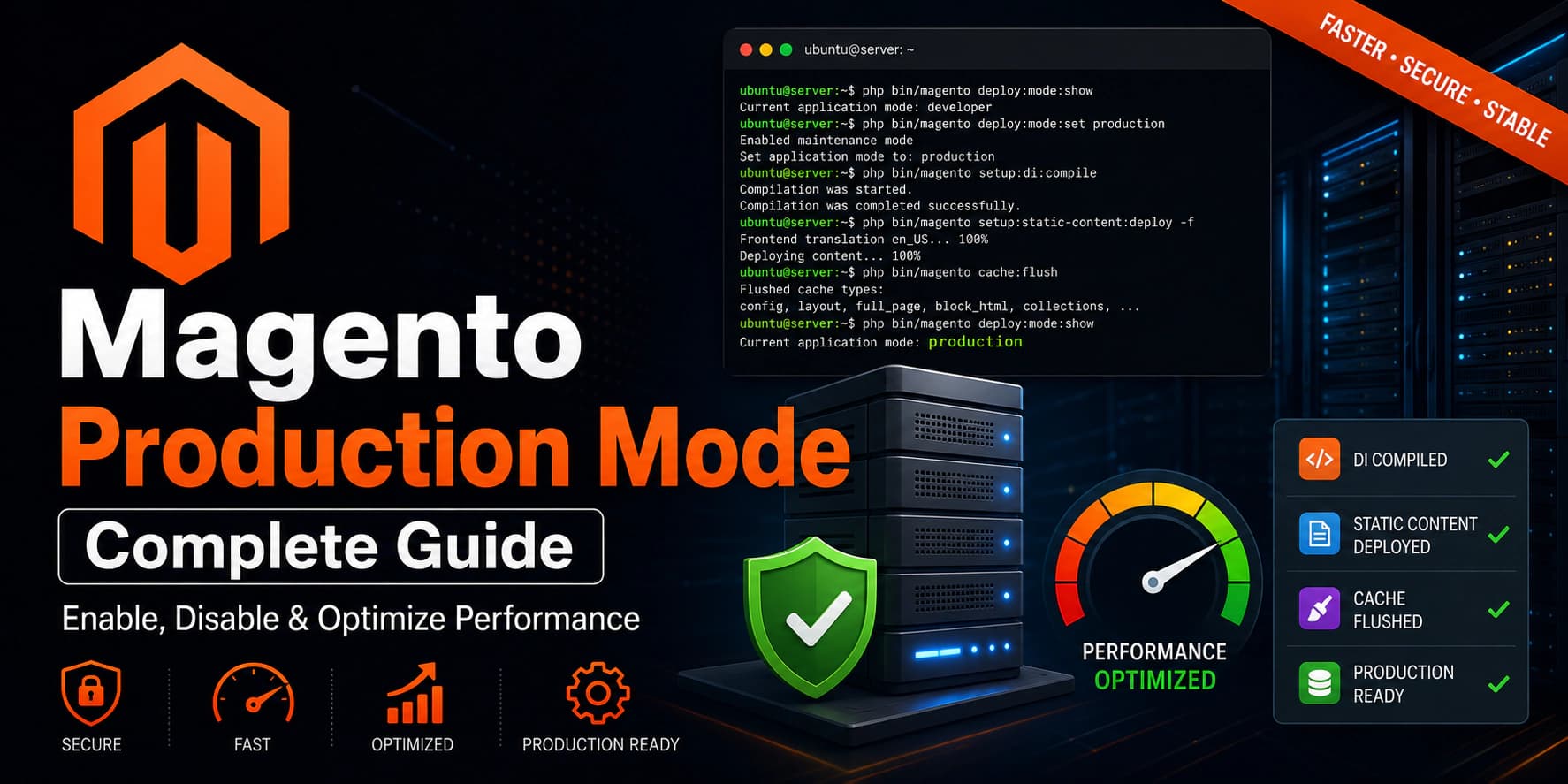
Magento Production Mode: Complete Guide
Magento provides three application modes that control how the platform behaves during development and in production environments. Choosing the correct mode is essential for performance, debugging, and security.
Many Magento beginners install Magento successfully but continue running their store in Developer Mode, which can expose sensitive information, reduce performance, and negatively impact the customer experience.
In this guide, you'll learn everything about Magento application modes, understand when to use each mode, and safely switch your store to Production Mode.
What is Magento Application Mode?
Application mode determines how Magento behaves internally.
It controls:
- Error reporting
- Static content generation
- Dependency Injection compilation
- Performance
- Logging
- Exception handling
Magento supports three application modes:
- Default Mode
- Developer Mode
- Production Mode
Each mode serves a different purpose during the lifecycle of a Magento project.
Magento Application Modes Comparison
| Mode | Purpose | Recommended For |
|---|---|---|
| Default | Initial installation | Local testing |
| Developer | Development & debugging | Developers |
| Production | Live websites | Production servers |
Default Mode
Default Mode is Magento's initial state immediately after installation.
Characteristics:
- Basic error reporting
- Limited debugging
- On-demand static content generation
- Suitable for quick testing
Although usable, Default Mode isn't intended for long-term development or production deployments.
Developer Mode
Developer Mode is designed for developers building custom Magento modules, themes, and integrations.
Developer Mode provides:
- Detailed exception messages
- Automatic code generation
- Automatic static content generation
- Easier debugging
- Improved developer productivity
Advantages
- Easier debugging
- Immediate error visibility
- Automatic code generation
- No need to redeploy static content after every small change
Disadvantages
- Slower performance
- Increased server load
- Detailed errors visible
- Not secure for public websites
Developer Mode should never be used on a live production store.
Production Mode
Production Mode is designed for live Magento websites.
It prioritizes:
- Performance
- Security
- Stability
- Scalability
In Production Mode:
- Static content is pre-generated
- Dependency Injection is compiled
- Exceptions are hidden from visitors
- Optimized code is served
- Response times are significantly faster
For every live Magento store, Production Mode is the recommended application mode.
Check the Current Magento Mode
Navigate to your Magento installation directory.
Example:
bashcd /var/www/html/magento
Run the following command:
bashphp bin/magento deploy:mode:show
Example output:
textCurrent application mode: developer
If your store is still running in Developer Mode, you should switch to Production Mode before launching your website.
Before Switching to Production Mode
Before enabling Production Mode, make sure you have:
- Completed development work
- Tested all custom modules
- Tested payment methods
- Verified shipping methods
- Confirmed themes are working correctly
Switching to Production Mode too early can slow down your development workflow because changes often require recompilation or redeployment.
Backup Your Store
Before making significant changes, create a backup.
Backup your code:
bashtar -czf magento-backup.tar.gz /var/www/html/magento
Backup your database:
bashmysqldump -u root -p magento > magento.sql
Having recent backups allows you to recover quickly if something goes wrong during deployment.
Step 1 — Enable Maintenance Mode
Before switching modes, place your store into maintenance mode.
bashphp bin/magento maintenance:enable
Visitors will see a maintenance page while deployment tasks are running.
This prevents customers from experiencing incomplete deployments or temporary errors.
Step 2 — Enable Production Mode
Run:
bashphp bin/magento deploy:mode:set production
Magento will automatically begin preparing the application for production.
Depending on your server specifications and installed extensions, this process may take several minutes.
What Happens When You Enable Production Mode?
When you switch Magento to Production Mode, Magento performs several optimizations to improve performance and security.
These include:
- Disabling automatic code generation
- Using precompiled dependency injection code
- Serving pre-generated static assets
- Hiding detailed exception messages from visitors
- Reducing filesystem operations
- Improving overall response times
These optimizations make Production Mode the recommended choice for every live Magento store.
Step 3 — Compile Dependency Injection
Magento relies heavily on Dependency Injection (DI). During development, Magento can generate required classes automatically.
In Production Mode, Magento expects these classes to already exist.
Compile them using:
bashphp bin/magento setup:di:compile
Example output:
textCompilation was started. Repositories code generation... Interceptors generation... Area configuration aggregation... Code generation completed successfully.
Depending on your server and installed extensions, this process may take several minutes.
Why is DI Compilation Important?
Dependency Injection compilation generates:
- Factories
- Proxies
- Interceptors
- Dependency metadata
Without compiling these files, Magento may display runtime errors or experience slower performance.
Always run DI compilation after:
- Installing a new module
- Updating extensions
- Upgrading Magento
- Deploying custom code
Step 4 — Deploy Static Content
Magento serves CSS, JavaScript, images, fonts, translations, and other frontend assets from the pub/static directory.
In Production Mode these files must be generated manually.
Run:
bashphp bin/magento setup:static-content:deploy -f
For stores with multiple languages, specify the locales:
bashphp bin/magento setup:static-content:deploy en_US fr_FR de_DE
Replace the locale codes with the languages used by your store.
What Does Static Content Deployment Generate?
The deployment process creates:
- CSS files
- JavaScript bundles
- Fonts
- Images
- Knockout templates
- Translation files
- Theme assets
These optimized assets are served directly to visitors, improving page load times.
Step 5 — Flush Magento Cache
After compilation and static content deployment, clear all caches.
bashphp bin/magento cache:flush
Example output:
textFlushed cache types: config layout block_html collections reflection db_ddl compiled_config eav customer_notification config_integration config_integration_api full_page translate
Flushing ensures Magento uses the latest generated files.
Step 6 — Reindex Magento
Magento uses indexers to improve database performance.
After major changes, reindex all data.
bashphp bin/magento indexer:reindex
Example output:
textDesign Config Grid index has been rebuilt successfully. Customer Grid index has been rebuilt successfully. Category Products index has been rebuilt successfully. Catalog Product Price index has been rebuilt successfully.
A successful reindex ensures catalog data is synchronized and searchable.
Step 7 — Disable Maintenance Mode
Once deployment is complete, bring the store back online.
bashphp bin/magento maintenance:disable
Visitors can now access the updated website.
Step 8 — Verify Production Mode
Confirm the current application mode.
bashphp bin/magento deploy:mode:show
Expected output:
textCurrent application mode: production
If you see this message, Magento is now running in Production Mode.
Production Deployment Checklist
Before making your store live, verify the following:
- ✅ Production Mode enabled
- ✅ Dependency Injection compiled
- ✅ Static content deployed
- ✅ Cache flushed
- ✅ Indexers rebuilt
- ✅ Maintenance mode disabled
- ✅ Website accessible
- ✅ Admin panel working correctly
Completing these steps helps ensure a smooth deployment with minimal issues.
Performance Improvements in Production Mode
Compared to Developer Mode, Production Mode offers several advantages.
| Feature | Developer Mode | Production Mode |
|---|---|---|
| Automatic code generation | ✅ | ❌ |
| Detailed error messages | ✅ | ❌ |
| Static content generation | Automatic | Manual |
| Performance | Lower | Higher |
| Security | Lower | Higher |
| Recommended for live stores | ❌ | ✅ |
For customer-facing websites, Production Mode delivers a faster, more secure, and more stable experience.
Common Mistakes
Forgetting DI Compilation
If you skip:
bashphp bin/magento setup:di:compile
Magento may throw errors such as:
textClass ... does not exist
Always compile after deploying new code.
Forgetting Static Content Deployment
Missing frontend assets can result in:
- Broken CSS
- Missing JavaScript
- Unstyled pages
- Missing icons
- Layout issues
Run:
bashphp bin/magento setup:static-content:deploy -f
to regenerate these assets.
Not Flushing the Cache
Magento may continue serving outdated files if the cache isn't cleared.
Always finish with:
bashphp bin/magento cache:flush
to ensure the latest changes are used.
Troubleshooting Production Mode
Even after following all the recommended steps, you may occasionally encounter issues when switching Magento to Production Mode. Below are some of the most common problems and their solutions.
Static Content Deployment Fails
If you receive errors while running:
bashphp bin/magento setup:static-content:deploy -f
Possible causes include:
- Missing file permissions
- Theme compilation errors
- Missing language packages
- Third-party extension issues
Solution
Check the detailed error output.
Clear generated files if necessary.
bashrm -rf generated/* rm -rf pub/static/* rm -rf var/view_preprocessed/*
Then redeploy.
bashphp bin/magento setup:static-content:deploy -f
Dependency Injection Compilation Fails
If compilation stops with an error similar to:
textClass ... does not exist
Possible causes:
- Invalid dependency injection configuration
- Incorrect constructor arguments
- Missing classes
- Module conflicts
Run:
bashphp bin/magento setup:di:compile
Review the reported class and correct the underlying issue before running the command again.
500 Internal Server Error
A 500 error after switching to Production Mode is often caused by:
- Incorrect file permissions
- PHP configuration issues
- Missing generated code
- Syntax errors in custom modules
Check the Magento logs:
bashtail -f var/log/system.log
bashtail -f var/log/exception.log
Also review your web server logs:
Nginx
bashsudo tail -f /var/log/nginx/error.log
Apache
bashsudo tail -f /var/log/apache2/error.log
Missing CSS or JavaScript
If your storefront loads without styling or interactive features:
- CSS is missing
- JavaScript isn't loading
- Icons are broken
Redeploy static assets.
bashphp bin/magento setup:static-content:deploy -f
Flush the cache.
bashphp bin/magento cache:flush
Permission Errors
Magento requires the correct ownership and permissions.
Set the web server user as the owner.
Example:
bashsudo chown -R www-data:www-data .
Recommended permissions:
bashfind var generated vendor pub/static pub/media app/etc -type f -exec chmod 644 {} \; find var generated vendor pub/static pub/media app/etc -type d -exec chmod 755 {} \;
Switching Back to Developer Mode
During development you may need to return to Developer Mode.
Run:
bashphp bin/magento deploy:mode:set developer
Verify:
bashphp bin/magento deploy:mode:show
Output:
textCurrent application mode: developer
Developer Mode is ideal while:
- Building custom modules
- Developing themes
- Testing APIs
- Debugging errors
Remember to switch back to Production Mode before deploying changes to your live website.
Deployment Workflow
A typical production deployment looks like this:
textEnable Maintenance Mode │ ▼ Deploy Updated Code │ ▼ Run DI Compilation │ ▼ Deploy Static Content │ ▼ Run Database Upgrade │ ▼ Reindex Data │ ▼ Flush Cache │ ▼ Disable Maintenance Mode
Following a consistent deployment process helps reduce downtime and minimizes deployment-related issues.
Best Practices
For production Magento stores:
- Always use Production Mode.
- Test new features in a staging environment before deploying to production.
- Keep Magento, PHP, and third-party extensions updated.
- Run database backups before upgrades.
- Monitor server logs regularly.
- Enable Redis and OpenSearch for improved performance.
- Keep static content and dependency injection code up to date after deployments.
- Avoid making code changes directly on production servers whenever possible.
Frequently Asked Questions
Which Magento mode should I use for a live website?
Production Mode is the recommended mode for all live Magento websites because it offers the best performance, security, and stability.
Can I develop in Production Mode?
It's possible, but not recommended.
Developer Mode provides automatic code generation and detailed error messages, making development much more efficient.
Do I need to redeploy static content every time?
Not always.
However, you should redeploy static content whenever you:
- Change themes
- Modify frontend files
- Install or update modules that affect the storefront
- Add or update language packs
Do I need to compile after every code change?
During development, no.
In Production Mode, yes—after deploying code changes or installing new modules, run:
bashphp bin/magento setup:di:compile
How do I check the current application mode?
Run:
bashphp bin/magento deploy:mode:show
Is Production Mode faster?
Yes.
Production Mode improves performance by:
- Using precompiled dependency injection
- Serving pre-generated static assets
- Reducing runtime file generation
- Hiding detailed exception messages
These optimizations lead to faster page loads and better scalability.
Conclusion
Congratulations! 🎉
You now understand how Magento application modes work and how to safely enable Production Mode.
In this guide you learned:
- The differences between Default, Developer, and Production modes
- When to use each mode
- How to enable Production Mode
- How to compile dependency injection
- How to deploy static content
- How to rebuild indexes
- How to flush caches
- How to troubleshoot common issues
- Best practices for production deployments
Running your live Magento store in Production Mode is one of the most important steps toward achieving better performance, improved security, and a more stable customer experience.
Continue the Magento Installation Series
Complete your production-ready Magento server with these guides:
- ✅ Install PHP 8.4 on Ubuntu 24.04
- ✅ Install Composer on Ubuntu 24.04
- ✅ Install MySQL 8 on Ubuntu 24.04
- ✅ Install OpenSearch on Ubuntu 24.04
- ✅ Install Redis on Ubuntu 24.04
- ✅ Install Nginx on Ubuntu 24.04
- ✅ Install Magento 2.4.8
- ➜ Configure Magento Cron Jobs
- ➜ Configure Magento File Permissions
- ➜ Magento Cache Management
- ➜ Magento Index Management
Need Professional Magento Development?
Whether you're launching a new Magento store, upgrading Adobe Commerce, optimizing performance, or integrating third-party systems, Paridhi Solutions can help.
Our Magento services include:
- Adobe Commerce & Magento Development
- Custom Module Development
- ERP & CRM Integrations
- GraphQL & REST API Development
- Performance Optimization
- Store Migration & Upgrades
- Ongoing Maintenance & Support
🌐 Website: https://paridhisolutions.com
📧 Email: info@paridhisolutions.com
If this guide helped you, consider sharing it with your team or bookmarking it for future reference.