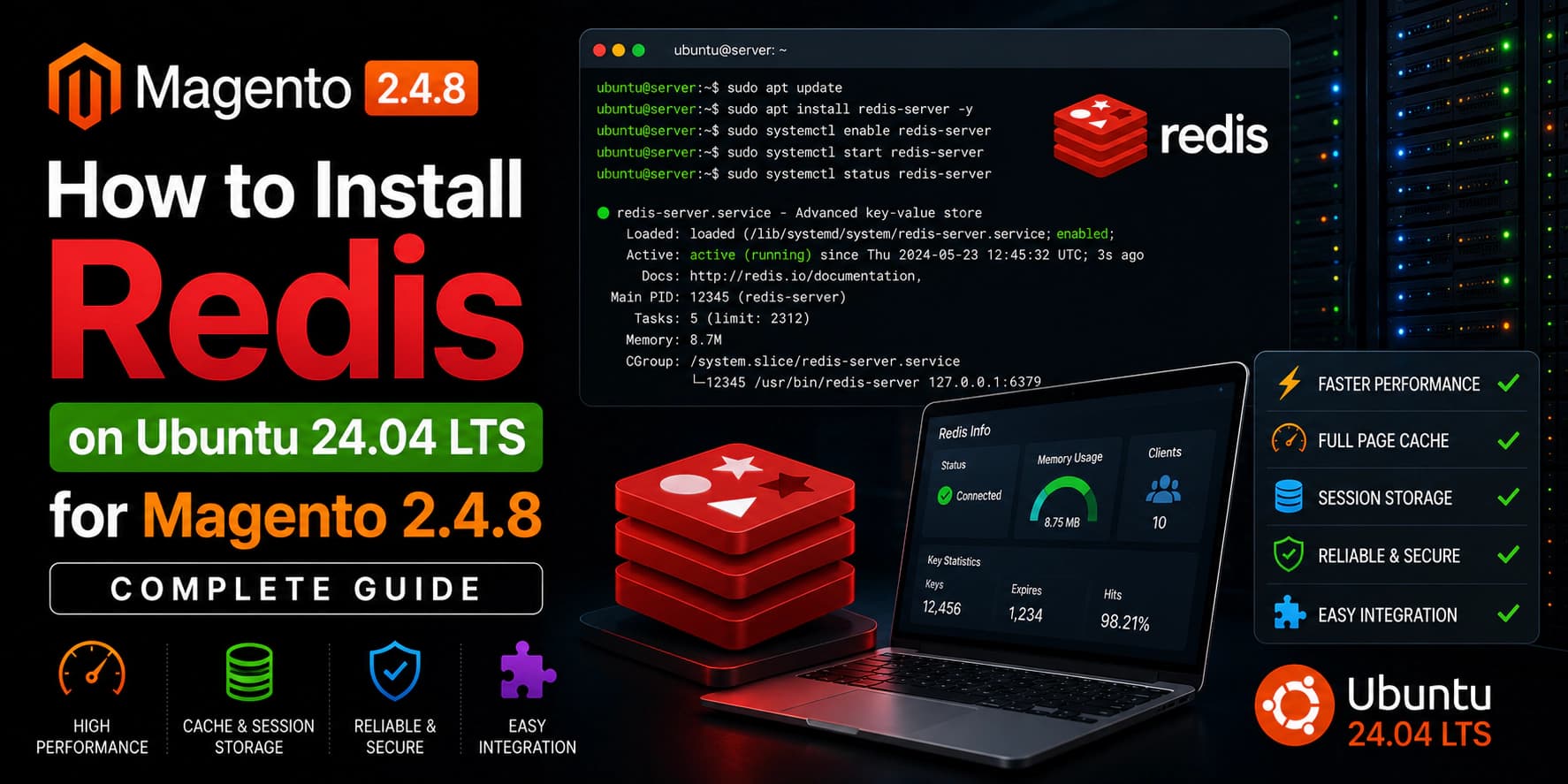
How to Install Redis on Ubuntu 24.04 LTS for Magento
Redis is one of the most important technologies for improving Magento performance. It stores frequently accessed data in memory, allowing Magento to retrieve information much faster than repeatedly querying the database.
Whether you're running a development store or a production eCommerce website, Redis significantly improves page load times, reduces server load, and provides a better shopping experience for customers.
In this guide, you'll learn how to install Redis on Ubuntu 24.04 LTS, configure it securely, optimize it for Magento, verify the installation, and troubleshoot common issues.
What is Redis?
Redis (Remote Dictionary Server) is an open-source, in-memory data store used as a:
- Cache
- Session Storage
- Message Broker
- Key-Value Database
Unlike MySQL, Redis stores data directly in memory (RAM), making read and write operations extremely fast.
Many high-traffic applications use Redis because of its exceptional performance and low latency.
Popular platforms using Redis include:
- Magento
- WordPress
- Laravel
- GitLab
- Stack Overflow
- Shopify
Why Magento Uses Redis
Magento performs thousands of database queries during normal operation.
Without caching, every request requires Magento to:
- Load configuration
- Read session data
- Generate cache
- Load layout XML
- Read product information
Redis reduces this workload dramatically.
Magento uses Redis for:
- Default Cache
- Page Cache
- User Sessions
This results in:
- Faster page loading
- Reduced MySQL load
- Better scalability
- Improved checkout performance
- Lower server resource usage
Redis Architecture
Redis stores data entirely in memory.
Unlike relational databases, Redis organizes information using key-value pairs.
Example:
textcustomer_session_1024 ↓ { customer_id: 55, cart_items: 3 }
Because the data is already stored in RAM, Redis can return results in milliseconds.
System Requirements
Before installing Redis, ensure your server meets these recommendations.
| Component | Recommended |
|---|---|
| Ubuntu | 24.04 LTS |
| RAM | 4 GB minimum |
| CPU | 2 Cores |
| Disk | SSD Recommended |
| Root Access | Sudo User |
💡 Tip
Redis performs best when sufficient RAM is available. For production Magento stores, 8 GB or more of memory is recommended.
Prerequisites
Before continuing, you should have already completed:
- Install PHP
- Install Composer
- Install MySQL
- Install OpenSearch
These components form the foundation of a production-ready Magento server.
Step 1 — Update Ubuntu
Begin by updating the package index.
bashsudo apt update sudo apt upgrade -y
Keeping your server updated ensures you're installing the latest Redis packages and security updates.
Step 2 — Install Redis
Ubuntu 24.04 includes Redis in the official repositories.
Install Redis using:
bashsudo apt install redis-server -y
The installation usually completes within a few seconds.
Step 3 — Verify Redis Installation
Check the installed version.
bashredis-server --version
Example output:
textRedis server v=7.x.x
This confirms Redis has been installed successfully.
Step 4 — Enable Redis at Boot
Enable Redis so it automatically starts after every server reboot.
bashsudo systemctl enable redis-server
Expected output:
textCreated symlink...
Step 5 — Start Redis
Start the Redis service.
bashsudo systemctl start redis-server
Verify the service.
bashsudo systemctl status redis-server
Expected output:
textActive: active (running)
If Redis is running successfully, the installation is complete.
What We've Completed
At this point you've successfully:
- Updated Ubuntu
- Installed Redis
- Verified the installation
- Enabled automatic startup
- Started the Redis service
Step 6 — Configure Redis
The main Redis configuration file is located at:
text/etc/redis/redis.conf
Open the file using your preferred text editor.
bashsudo nano /etc/redis/redis.conf
This file controls how Redis behaves, including network access, memory management, persistence, and security.
Step 7 — Configure the Bind Address
Locate the following line.
inibind 127.0.0.1 -::1
This ensures Redis accepts connections only from the local machine.
For most Magento installations, this is the recommended configuration because Magento and Redis typically run on the same server.
💡 Tip
Avoid exposing Redis directly to the public internet. Redis is designed to be used within trusted networks.
Step 8 — Enable Password Authentication
Although Redis is usually accessible only locally, adding authentication provides an additional layer of security.
Search for:
ini# requirepass foobared
Replace it with a strong password.
inirequirepass YourStrongRedisPassword
Choose a long, unique password that isn't used elsewhere.
Save the configuration before continuing.
Step 9 — Configure Memory Limits
Redis stores data in RAM, so it's important to define a maximum memory limit.
Search for:
ini# maxmemory <bytes>
Example:
inimaxmemory 2gb
Choose a value appropriate for your server.
Recommended Values
| Server RAM | Redis Memory |
|---|---|
| 4 GB | 512 MB |
| 8 GB | 1 GB |
| 16 GB | 2 GB |
| 32 GB | 4 GB |
Leave enough RAM for:
- Ubuntu
- PHP
- MySQL
- OpenSearch
- Nginx
Step 10 — Configure the Eviction Policy
When Redis reaches the configured memory limit, it needs to know which keys should be removed.
Locate:
ini# maxmemory-policy noeviction
For Magento, use:
inimaxmemory-policy allkeys-lru
What Does allkeys-lru Mean?
Redis removes the least recently used keys first.
This policy works well because Magento constantly regenerates cache entries when needed.
Step 11 — Configure Persistence
Redis supports two persistence methods:
- RDB Snapshots
- AOF (Append Only File)
Magento primarily uses Redis as a cache, so persistence requirements depend on how you use Redis.
For cache storage, the default snapshot configuration is generally sufficient.
If you're also storing sessions or other critical data in Redis, review your persistence settings to ensure they match your recovery requirements.
Step 12 — Restart Redis
After making configuration changes, restart the service.
bashsudo systemctl restart redis-server
Verify the service.
bashsudo systemctl status redis-server
Expected output:
textActive: active (running)
Step 13 — Verify Redis is Working
Redis includes a built-in command-line client.
Run:
bashredis-cli
If password authentication is enabled, authenticate first:
bashAUTH YourStrongRedisPassword
Now test the connection.
bashPING
Expected response:
textPONG
This confirms Redis is running correctly.
Exit the Redis CLI.
bashEXIT
Step 14 — Test Read and Write Operations
Store a value.
bashredis-cli
textSET website "Paridhi Solutions"
Redis should respond:
textOK
Retrieve the value.
textGET website
Output:
text"Paridhi Solutions"
Delete the key.
textDEL website
Exit Redis.
textEXIT
This confirms Redis can successfully store and retrieve data.
Step 15 — Verify the Listening Port
Redis listens on port 6379 by default.
Check that the service is listening.
bashsudo ss -tulpn | grep 6379
Example output:
textLISTEN 0 511 127.0.0.1:6379
This confirms Redis is accepting local connections.
Step 16 — Monitor Redis
Redis provides useful runtime information.
View server statistics.
bashredis-cli INFO
To inspect memory usage:
bashredis-cli INFO memory
To monitor connected clients:
bashredis-cli INFO clients
These commands are especially useful when troubleshooting performance issues or monitoring a production environment.
What We've Completed
Congratulations! At this point you've:
- Configured Redis
- Secured it with a password
- Limited memory usage
- Configured the eviction policy
- Restarted the service
- Verified connectivity
- Tested read/write operations
- Confirmed Redis is listening on the expected port
- Learned how to monitor Redis
Step 17 — Configure Magento to Use Redis
Magento supports Redis for three different purposes:
- Default Cache
- Full Page Cache
- User Sessions
Using Redis for all three significantly improves performance and reduces database load.
You can configure Redis during Magento installation or later using the Magento CLI.
To verify your current cache configuration:
bashphp bin/magento cache:status
After configuring Redis, flush the cache.
bashphp bin/magento cache:flush
Verify Redis is Being Used
You can monitor Redis activity in real time.
Open a terminal and run:
bashredis-cli monitor
Now browse your Magento store in another browser window.
You'll see Redis commands appearing in real time, confirming Magento is communicating with Redis.
Press Ctrl + C to stop monitoring.
Production Best Practices
Installing Redis is only the first step. Proper configuration ensures long-term stability and performance.
Keep Redis Updated
Regularly install security updates.
bashsudo apt update sudo apt upgrade
Monitor Memory Usage
Check available memory.
bashfree -h
View Redis memory statistics.
bashredis-cli INFO memory
If Redis frequently reaches its configured memory limit, increase the available RAM or adjust the memory allocation.
Monitor Connected Clients
Display active client connections.
bashredis-cli INFO clients
Unexpected spikes may indicate application issues or unusual traffic.
Monitor Redis Statistics
View server statistics.
bashredis-cli INFO stats
Useful metrics include:
- Cache Hits
- Cache Misses
- Commands Processed
- Expired Keys
- Evicted Keys
Monitoring these values helps identify caching inefficiencies.
Review Redis Logs
If Redis isn't behaving as expected, check the logs.
bashsudo journalctl -u redis-server
or
bashsudo tail -f /var/log/redis/redis-server.log
Logs often reveal configuration problems or startup failures.
Security Recommendations
Redis is extremely fast, but it should also be secured.
Keep Redis Private
Use:
inibind 127.0.0.1
This limits access to the local server.
Enable Password Authentication
Configure a strong password.
inirequirepass YourStrongRedisPassword
Never use simple passwords in production.
Restrict Firewall Access
If Redis is running on a separate server, allow access only from trusted hosts.
Example using UFW:
bashsudo ufw allow from YOUR_MAGENTO_SERVER_IP to any port 6379
Avoid opening Redis to the entire internet.
Troubleshooting
Redis Service Won't Start
Check the service.
bashsudo systemctl status redis-server
Review logs.
bashsudo journalctl -u redis-server
Connection Refused
Verify Redis is running.
bashredis-cli ping
Expected response:
textPONG
If authentication is enabled:
bashredis-cli AUTH YourStrongRedisPassword PING
Authentication Failed
If you receive:
textNOAUTH Authentication required.
Authenticate first.
bashAUTH YourStrongRedisPassword
Port 6379 Already in Use
Identify the conflicting process.
bashsudo ss -tulpn | grep 6379
or
bashsudo lsof -i :6379
Resolve the conflict before restarting Redis.
High Memory Usage
Check memory statistics.
bashredis-cli INFO memory
Possible solutions:
- Increase available RAM.
- Reduce the Redis memory limit.
- Review eviction policies.
- Remove unused keys.
Slow Performance
Monitor Redis in real time.
bashredis-cli monitor
Review:
- Large keys
- Long-running commands
- Excessive write operations
These can impact overall performance.
Frequently Asked Questions
What is Redis used for in Magento?
Redis stores:
- Default Cache
- Full Page Cache
- Customer Sessions
This improves performance by reducing the number of database queries.
Which port does Redis use?
By default:
text6379
How do I restart Redis?
bashsudo systemctl restart redis-server
How do I stop Redis?
bashsudo systemctl stop redis-server
How do I check the Redis version?
bashredis-server --version
How do I verify Redis is running?
bashredis-cli ping
Expected response:
textPONG
Where is the Redis configuration file?
text/etc/redis/redis.conf
Where are Redis logs stored?
Typically:
text/var/log/redis/redis-server.log
You can also use:
bashsudo journalctl -u redis-server
Conclusion
Congratulations! 🎉
You've successfully installed and configured Redis on Ubuntu 24.04 LTS.
Your Redis server is now ready to accelerate Magento by handling cache storage, full-page caching, and session management.
In this guide, you learned how to:
- Install Redis
- Configure Redis securely
- Optimize memory usage
- Configure persistence
- Verify the installation
- Monitor Redis
- Troubleshoot common issues
- Prepare Redis for a production Magento environment
With Redis running correctly, your Magento server is now significantly better prepared for handling traffic efficiently.
Continue the Magento Installation Series
Continue with the next guide:
- ✅ Install PHP 8.4 on Ubuntu 24.04
- ✅ Install Composer on Ubuntu 24.04
- ✅ Install MySQL 8 on Ubuntu 24.04
- ✅ Install OpenSearch on Ubuntu 24.04
- ✅ Install Redis on Ubuntu 24.04
- ➜ Install Nginx on Ubuntu 24.04
- Install Magento 2.4.8
- Configure Production Mode
- Configure Cron Jobs
- Configure File Permissions
Need Professional Magento Development?
Building or scaling a Magento store requires more than just installing software. A well-optimized environment improves speed, stability, and long-term maintainability.
Paridhi Solutions provides:
- Adobe Commerce & Magento Development
- Custom Module Development
- Third-Party API & ERP Integrations
- Performance Optimization
- Store Migration & Upgrades
- Ongoing Maintenance & Support
🌐 Website: https://paridhisolutions.com
📧 Email: info@paridhisolutions.com
If you found this guide useful, consider bookmarking it and sharing it with other Magento developers.