
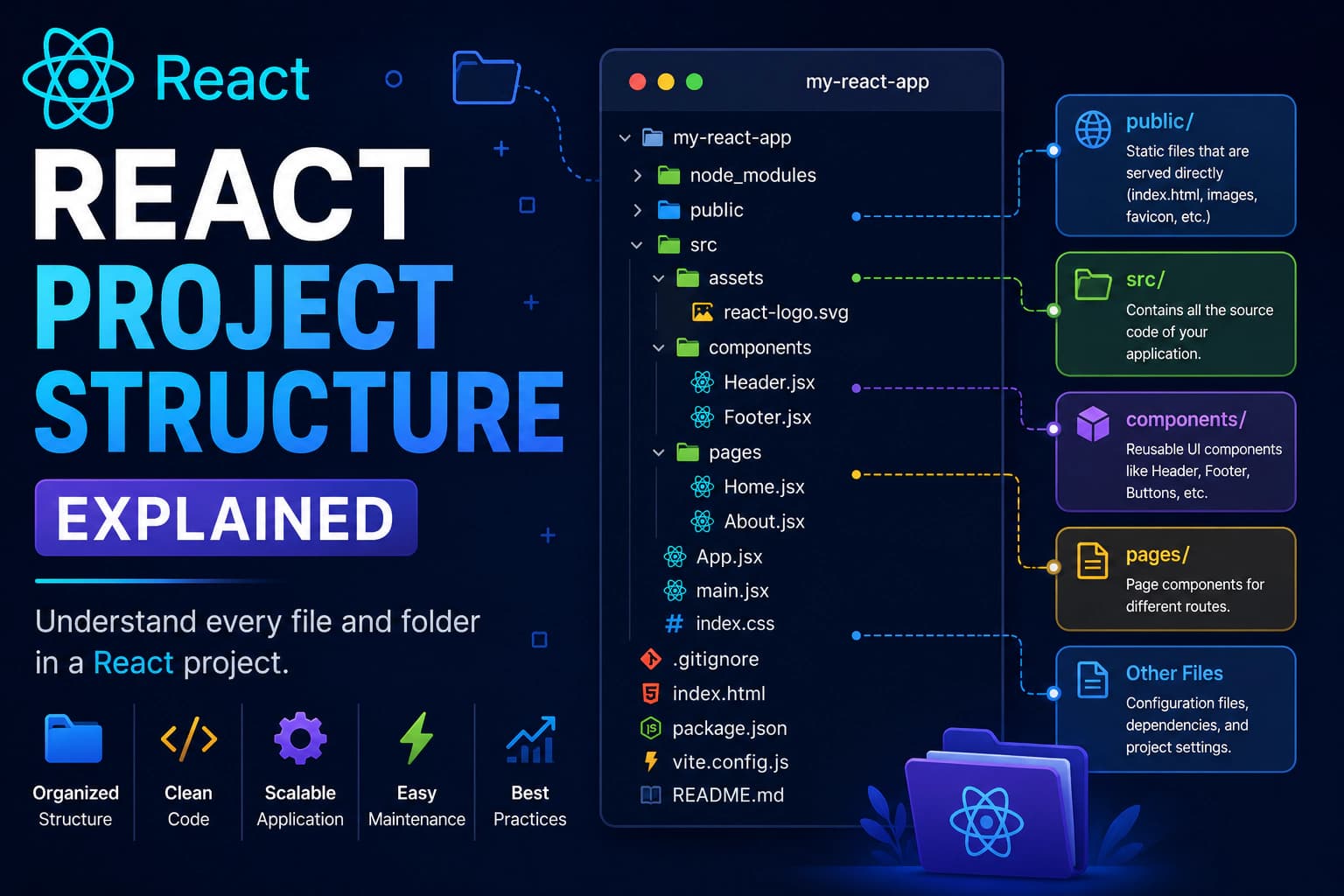
React Project Structure Explained
When you create a React application using Vite, you'll notice several folders and files. At first glance, the project structure may seem confusing, especially for beginners.
Understanding the purpose of each folder is essential because you'll interact with these files every day while building React applications.
In this guide, we'll explore every important folder and file generated by Vite, explain its purpose, and discuss best practices for organizing React projects.
By the end of this tutorial, you'll know exactly where to place components, images, styles, utility functions, pages, and other resources.
Default React Project Structure
After creating a React project with Vite, you'll see a structure similar to this:
textmy-react-app │ ├── node_modules/ ├── public/ ├── src/ │ ├── assets/ │ ├── App.css │ ├── App.jsx │ ├── index.css │ └── main.jsx │ ├── .gitignore ├── index.html ├── package.json ├── package-lock.json ├── vite.config.js └── README.md
Each file has a specific responsibility.
Let's understand them one by one.
Root Directory
The root directory is the main folder that contains your entire React project.
Everything related to your application exists inside this directory.
Typical files include:
- Source code
- Configuration files
- Dependencies
- Static assets
- Build settings
You should keep the root directory clean and avoid placing application logic directly here.
node_modules
One of the largest folders in a React project is:
textnode_modules
This directory stores every dependency installed using npm.
Examples include:
- React
- React DOM
- Vite
- ESLint
- Third-party libraries
These packages are downloaded automatically when you run:
bashnpm install
Because this folder can become very large, it should never be committed to Git.
Instead, developers commit the package.json and package-lock.json files so others can install the same dependencies.
public
The public folder contains static files that are served directly by the web server.
Common examples include:
- favicon.ico
- robots.txt
- images
- PDF files
- manifest files
Example:
textpublic/ ├── favicon.ico ├── logo.png └── robots.txt
If you place logo.png inside the public folder, it can be accessed as:
texthttp://localhost:5173/logo.png
Files inside public are not processed or optimized during the build process.
Use this folder only for assets that need to remain unchanged.
src
The src folder is the heart of every React application.
Almost all application code lives here.
Typical contents include:
- Components
- Pages
- Hooks
- Utilities
- Styles
- Context
- API services
You'll spend most of your development time inside this directory.
assets
Inside src, you'll usually find:
textsrc/assets
This folder stores resources that are imported into your application.
Examples include:
- Images
- SVG icons
- Fonts
- Videos
Unlike the public folder, assets here are optimized by Vite during the build process.
For project-specific resources, src/assets is generally the preferred location.
main.jsx
The main.jsx file is the entry point of your React application.
When you start the development server, this is the very first JavaScript file executed.
A typical main.jsx file looks like this:
jsximport React from "react"; import ReactDOM from "react-dom/client"; import App from "./App.jsx"; import "./index.css"; ReactDOM.createRoot( document.getElementById("root") ).render( <React.StrictMode> <App /> </React.StrictMode> );
Let's understand what happens here.
Import React
jsximport React from "react";
Imports the React library.
Modern React projects don't always require this import for JSX, but you'll still encounter it in many examples and projects.
Import ReactDOM
jsximport ReactDOM from "react-dom/client";
ReactDOM is responsible for rendering React components inside the browser.
Import App
jsximport App from "./App.jsx";
This imports the root component of your application.
Everything you build eventually starts from this component.
Import Global CSS
jsximport "./index.css";
This imports the application's global stylesheet.
Unlike component-specific CSS, this file affects the entire application.
Render the Application
jsxReactDOM.createRoot( document.getElementById("root") ).render( <React.StrictMode> <App /> </React.StrictMode> );
React looks for:
html<div id="root"></div>
inside index.html.
It then renders the App component inside that element.
App.jsx
The App.jsx file is the root React component.
By default, Vite generates something similar to:
jsxfunction App() { return ( <h1>Hello React</h1> ); } export default App;
Every page, component, and feature you build eventually becomes part of this component tree.
As your application grows, App.jsx usually becomes responsible for:
- Routing
- Layout
- Navigation
- Global Providers
- Theme Configuration
App.css
This stylesheet contains styles specifically for the App component.
Example:
cssh1{ color:#2563eb; }
When projects become larger, many developers move to:
- CSS Modules
- Tailwind CSS
- Styled Components
instead of keeping all styles inside App.css.
index.css
Unlike App.css, this file contains global styles.
Examples include:
- Font Family
- Background Color
- Body Margin
- Typography
- CSS Variables
Example:
cssbody{ margin:0; font-family:Arial, sans-serif; }
These styles apply throughout the application.
index.html
Although React generates the user interface, there is still one HTML file.
Located at:
textindex.html
Example:
html<!DOCTYPE html> <html> <head> <title>React App</title> </head> <body> <div id="root"></div> <script type="module" src="/src/main.jsx"></script> </body> </html>
Notice:
html<div id="root"></div>
React renders the complete application inside this element.
package.json
One of the most important files in every React project is:
textpackage.json
This file stores project information.
Example:
json{ "name":"my-react-app", "private":true, "scripts":{ "dev":"vite", "build":"vite build", "preview":"vite preview" } }
It also stores:
- Dependencies
- Project Name
- Version
- npm Scripts
Whenever you install a package:
bashnpm install axios
it gets added automatically to this file.
package-lock.json
This file records the exact versions of every installed package.
It ensures every developer working on the project installs the same dependency versions.
Unlike package.json, you should never edit this file manually.
vite.config.js
This file controls how Vite behaves.
Default example:
javascriptimport { defineConfig } from "vite"; import react from "@vitejs/plugin-react"; export default defineConfig({ plugins:[react()] });
As your application grows, you can configure:
- Path aliases
- Build options
- Plugins
- Development server
- Proxy rules
Most beginners won't need to modify this file immediately.
.gitignore
The .gitignore file tells Git which files and folders should not be tracked.
Example:
textnode_modules dist .env .DS_Store
This prevents unnecessary files from being committed to your Git repository.
README.md
Every Vite project includes a README file.
It usually contains:
- Installation instructions
- Available commands
- Project information
As your project grows, updating the README helps new developers understand how to run and contribute to the application.
How React Starts
Understanding the startup sequence helps beginners understand how everything fits together.
textBrowser ↓ index.html ↓ main.jsx ↓ App.jsx ↓ Components ↓ Browser Screen
Everything begins with index.html, which loads main.jsx.
main.jsx renders App.jsx, and App.jsx renders the rest of your React application.
Recommended Folder Structure for Large React Projects
As your React application grows, organizing files properly becomes increasingly important. A well-structured project is easier to maintain, scale, and collaborate on with other developers.
A commonly used structure looks like this:
textsrc/ │ ├── assets/ │ ├── components/ │ ├── Button/ │ ├── Header/ │ ├── Footer/ │ └── Navbar/ │ ├── pages/ │ ├── Home/ │ ├── About/ │ ├── Contact/ │ └── Dashboard/ │ ├── hooks/ │ ├── context/ │ ├── services/ │ ├── utils/ │ ├── layouts/ │ ├── routes/ │ ├── App.jsx │ └── main.jsx
This structure keeps related files together and makes navigation much easier as the project grows.
Suggested Purpose of Each Folder
| Folder | Purpose |
|---|---|
| assets | Images, fonts, icons and static resources |
| components | Reusable UI components |
| pages | Individual application pages |
| hooks | Custom React Hooks |
| context | React Context providers |
| services | API calls and business logic |
| utils | Helper and utility functions |
| layouts | Shared layouts such as Admin or Public |
| routes | Routing configuration |
Not every project requires all of these folders. Start simple and add new folders as your application evolves.
Best Practices
Following a few simple practices from the beginning can save a lot of time later.
Keep Components Small
Each component should have a single responsibility.
Instead of creating one very large component, divide it into smaller reusable components.
Organize Related Files Together
Group related components inside their own folders.
Example:
textcomponents/ Button/ Button.jsx Button.css Card/ Card.jsx Card.css
This makes projects much easier to navigate.
Use Meaningful Names
Choose descriptive names.
Good examples:
textProductCard.jsx UserProfile.jsx ShoppingCart.jsx
Avoid generic names like:
textTest.jsx Component1.jsx New.jsx
Clear names improve readability.
Separate Business Logic
Avoid placing API calls directly inside components whenever possible.
Instead:
textservices/ api.js userService.js productService.js
This keeps components focused on rendering the user interface.
Create Reusable Components
If you notice yourself copying the same code multiple times, consider turning it into a reusable component.
Examples include:
- Buttons
- Cards
- Inputs
- Modals
- Navigation Bars
Reusable components reduce duplication and simplify maintenance.
Common Beginner Mistakes
When learning React, it's normal to make mistakes. Here are a few common ones to avoid.
Putting Everything Inside App.jsx
Many beginners build the entire application inside a single file.
Instead, break your application into smaller components.
Editing node_modules
Never modify files inside:
textnode_modules
These files are managed by npm and will be replaced whenever dependencies are reinstalled.
Using the public Folder for Everything
The public folder should only contain files that need to be served directly.
Project-specific images and icons are usually better placed inside:
textsrc/assets
so they can be optimized during the build process.
Ignoring Folder Organization
Even small projects benefit from a clear structure.
Organizing files early makes future maintenance much easier.
Frequently Asked Questions
Which folder contains React components?
Most projects store reusable components inside:
textsrc/components
Where should images be stored?
Project-specific images are commonly stored in:
textsrc/assets
Static files that must be served directly can be placed in:
textpublic
Can I rename folders?
Yes.
React doesn't require a fixed folder structure.
Choose names that make sense for your project and keep them consistent.
What is the most important file?
The most important files are:
main.jsxApp.jsxpackage.json
These files control how the application starts and how it is configured.
Do I need every folder from the recommended structure?
No.
Start with the default Vite structure and introduce new folders only when your project grows.
Keeping the structure simple at the beginning is perfectly acceptable.
Conclusion
Congratulations! 🎉
You now have a solid understanding of the React project structure created by Vite.
In this guide, you learned:
- The purpose of every important folder and file
- How React starts and renders your application
- The role of
main.jsxandApp.jsx - How
package.jsonandvite.config.jswork - Best practices for organizing projects
- Common beginner mistakes to avoid
Understanding the project structure early makes it much easier to build scalable, maintainable React applications.
Continue the React Learning Path
Continue with the next guide:
- ✅ What is React?
- ✅ Install React with Vite
- ✅ React Project Structure Explained
- ➜ JSX Explained
- React Components
- Props
- State
- useState Hook
- Event Handling
- Conditional Rendering
- Lists & Keys
- Forms
- useEffect Hook
- React Router
- API Integration
Each tutorial builds on the previous one, helping you progress from beginner to advanced React development.
Need Professional React Development?
Looking for experienced React developers?
Paridhi Solutions builds modern, scalable, and high-performance web applications using React and Next.js.
Our services include:
- React.js Development
- Next.js Development
- Custom Dashboard Development
- REST API & GraphQL Integration
- UI/UX Implementation
- Performance Optimization
- Ongoing Maintenance & Support
🌐 Website: https://paridhisolutions.com
📧 Email: info@paridhisolutions.com
If this guide helped you, consider bookmarking it and sharing it with other developers.